

Unlock seamless workflow by integrating your Oorwin account with ChatGPT using the Model Context Protocol (MCP) connector. This guide shows exactly how to connect, sign in, and start interacting with your Oorwin data—right inside ChatGPT.
Navigation
ChatGPT → Plugins → + → Add new plugin → Create
Before you begin
- Make sure you have an active Oorwin account.
- Make sure you can sign in to ChatGPT.
- Use the Oorwin MCP server URL: https://mcp.oorwin.ai/mcp
Steps to connect Oorwin AI to ChatGPT
Step 1: Click Plugins in your ChatGPT interface.
Open ChatGPT and select Plugins from the left-side menu.
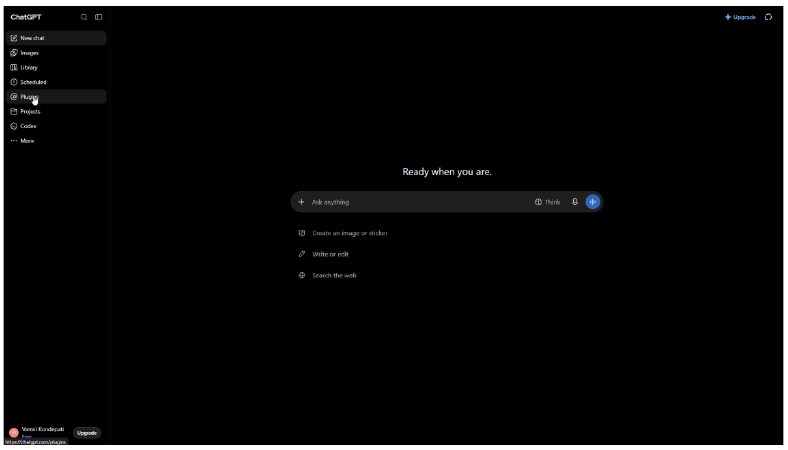
Step 1 reference screenshot
Step 2: Find and click the plus icon (+) to add a new plugin.
On the Plugins page, click the + icon to add a new plugin.
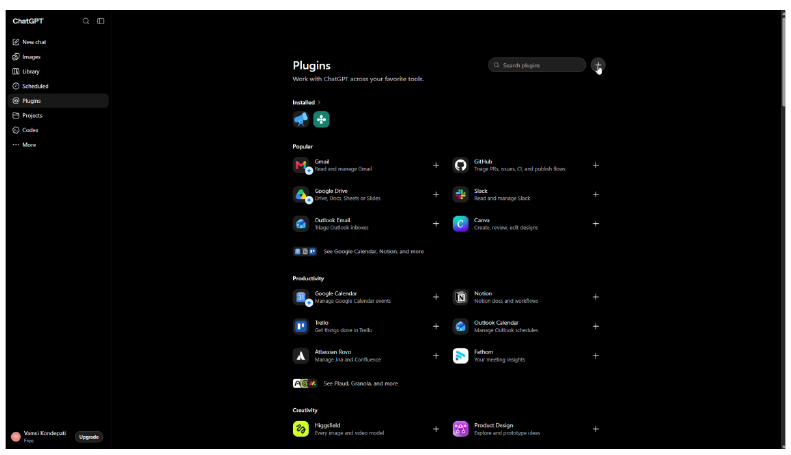
Step 2 reference screenshot
Step 3: Enter the plugin name.
In the New Plugin window, enter the plugin name as Oorwin AI.
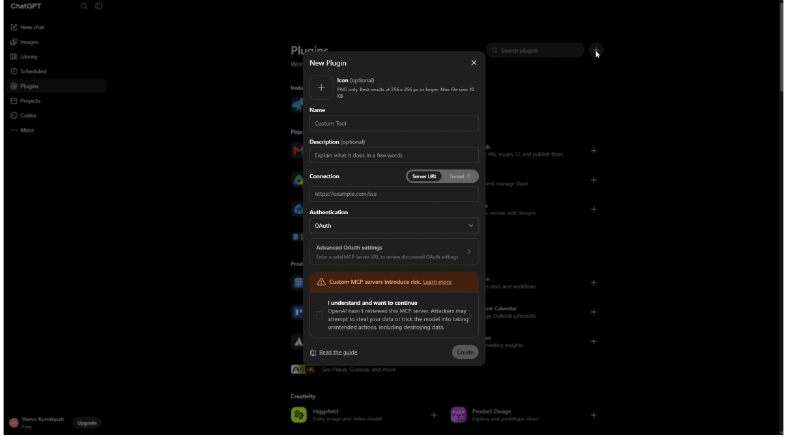
Step 3 reference screenshot
Step 4: Enter the URL for Oorwin AI.
In the connection field, enter the Oorwin MCP server URL: https://mcp.oorwin.ai/mcp.
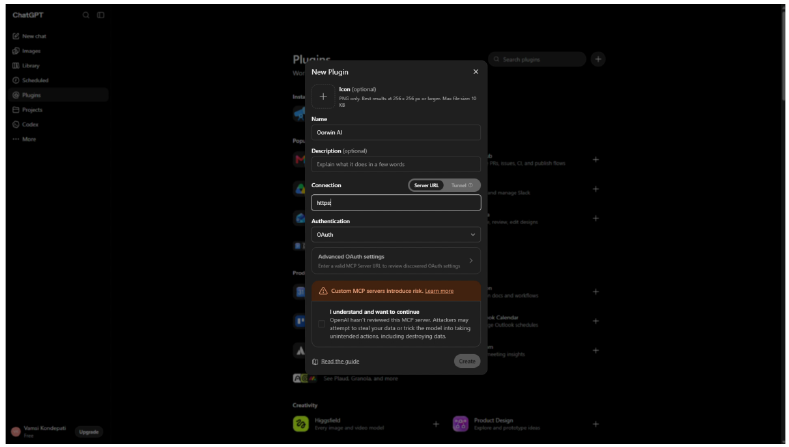
Step 4 reference screenshot
Step 5: Click Create to finish setting up the connection.
After entering the required details, click Create to finish setting up the connection.
Step 6: Select Sign in with OpenAI when prompted.
When the connection prompt appears, select Sign in with OpenAI.
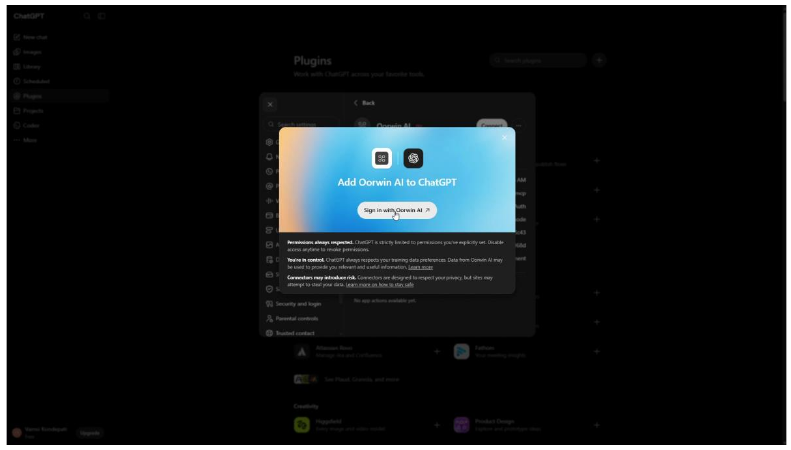
Step 6 reference screenshot
Step 7: Enter your Oorwin login credentials and click Sign in.
Enter your Oorwin login credentials and select Sign in.
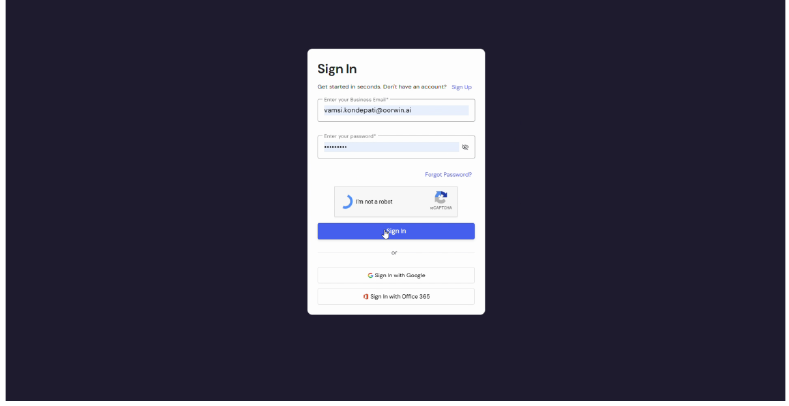
Step 7 reference screenshot
Step 8: Connect your Oorwin account to ChatGPT.
Once logged in, your Oorwin account links to ChatGPT. Switch to the Chats section to start using Oorwin in ChatGPT.
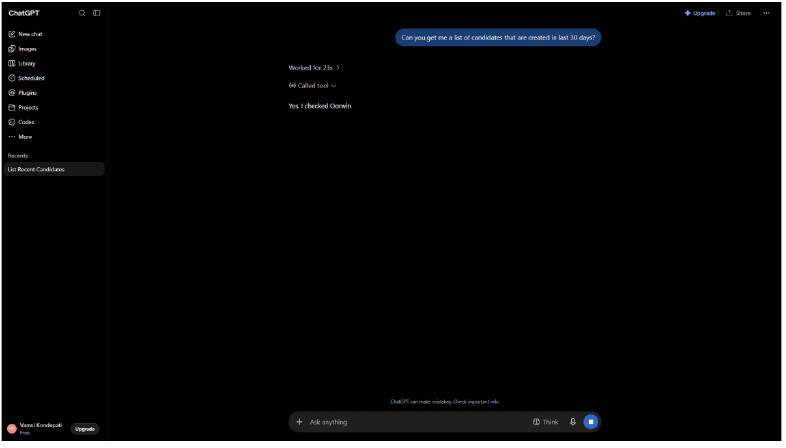
Step 9: Send a prompt to ChatGPT.
Send a natural-language prompt, such as requesting a list of candidates created in the last week.
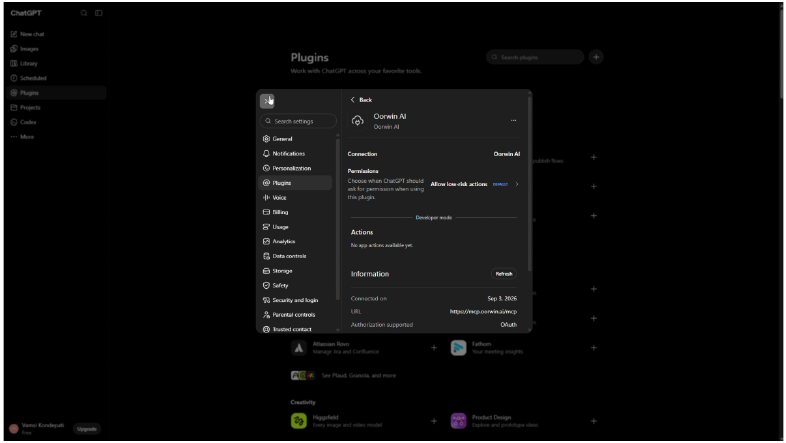
Step 9 reference screenshot
Step 10: Review the returned candidate results.
Review the candidate results returned by ChatGPT.
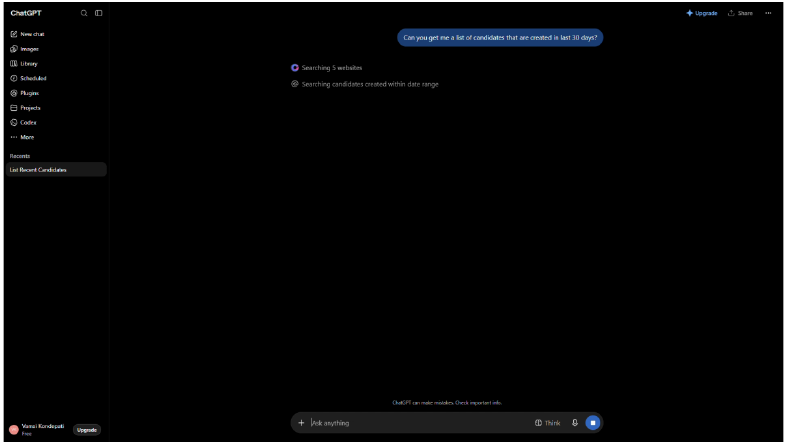
Step 10 reference screenshot
Step 11: Browse your candidate list in ChatGPT.
Browse the candidate information returned from Oorwin directly in ChatGPT.
Step 12: Copy candidate data as needed for your next steps.
Use the returned candidate information for your next steps or workflow.
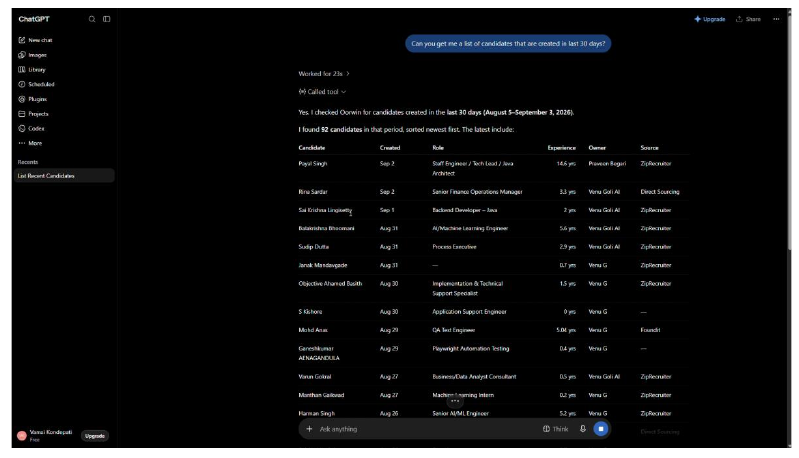
Step 12 reference screenshot
Additional reference screenshot for Step 9
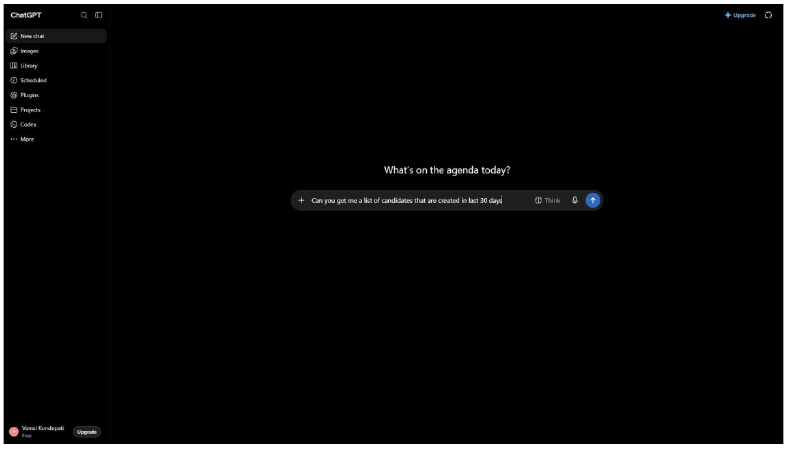
Candidate prompt and ChatGPT response view
Result
- Your Oorwin account is connected to ChatGPT through MCP.
- You can use ChatGPT to retrieve supported Oorwin information and interact with available Oorwin tools.
- You can ask natural-language questions and retrieve Oorwin data directly within ChatGPT.
Example
After the connection is active, ask ChatGPT for information such as a list of candidates created in the last week. ChatGPT can use the connected Oorwin MCP tools to retrieve the relevant information.
Note
The Oorwin data and actions available in ChatGPT depend on the MCP tools enabled for your account and the permissions associated with your Oorwin user.